Roadmap to getting started
This roadmap shows the main steps for getting started on CHTC’s HTC system. Use this page as a starting point, review key concepts, and find links to more detailed guides.
Whether you are preparing to use CHTC for the first time or reviewing a specific part of the process, this page can help you find the right next step.
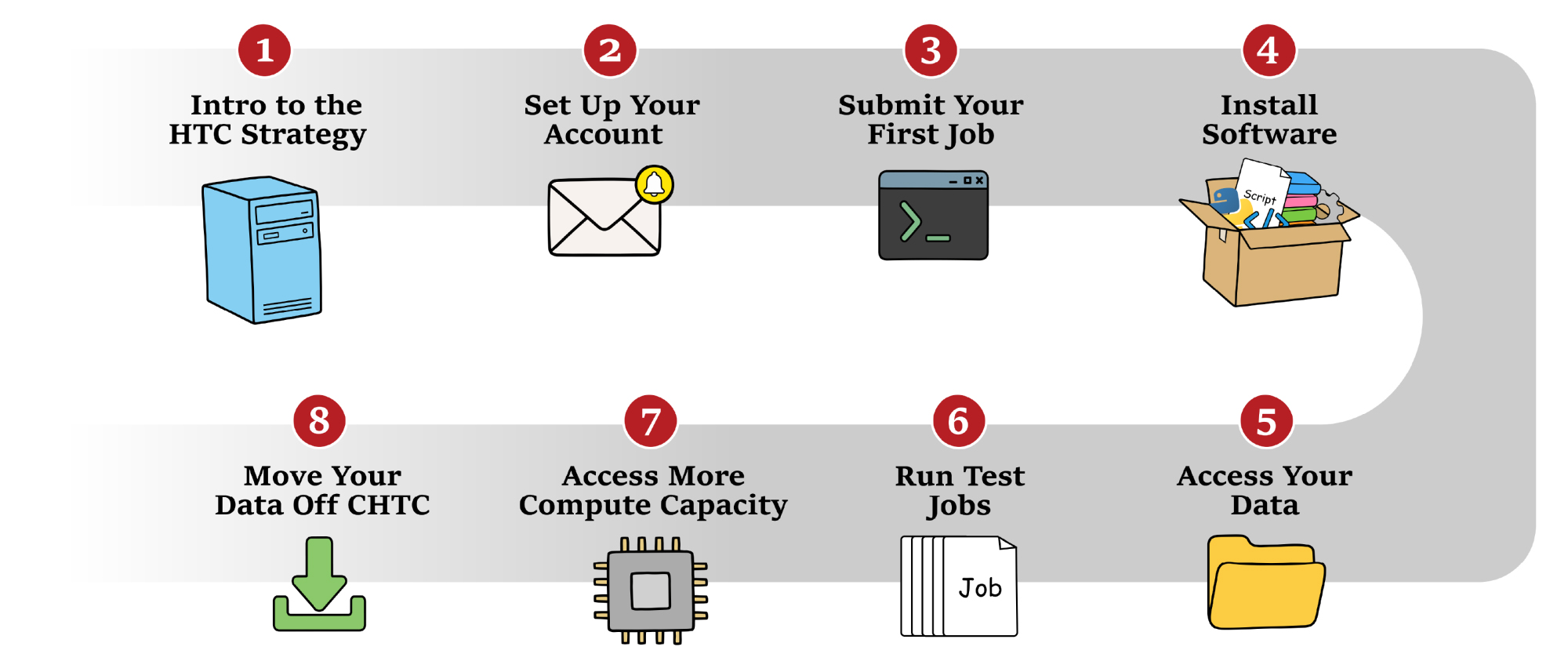
Table of Contents
Step One: Introduction to the High Throughput Computing Strategy
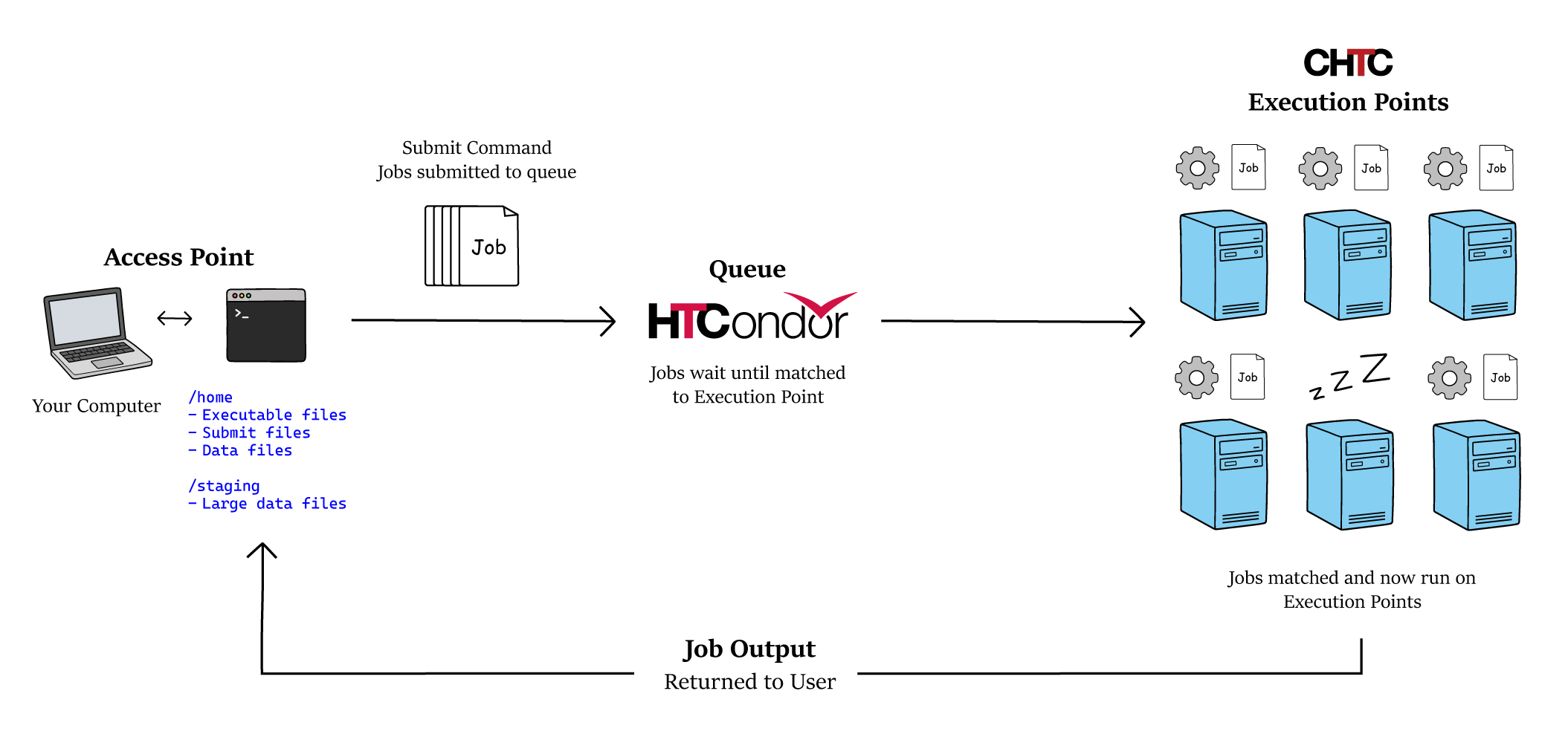
Like nearly all large-scale compute systems, users of both CHTC’s High Throughput and High Performance systems prepare their computational work and submit them as tasks called jobs. These jobs run on execution points, which are the computers that perform the work.
Terminology:
- The Access Point is where you log in and stage your data, executables/scripts, and software to use in jobs.
- HTCondor is a job scheduling software that will run your jobs out on the execution points.
- The Execution Points are the set of resources your job runs on.
High Throughput Computing systems specialize in running tens to millions of small, independent jobs. On the other hand, High Performance Computing systems specialize in running a few, very large jobs that use multiple computers working together on the same problem.
| HTC (High Throughput Computing) | HPC (High Performance Computing) | |
|---|---|---|
| Best for... | Running several independent jobs | Running one very large job |
| Typical size | 1 - 4 CPUs/job | 30+ CPUs/job | Multiple computers work together on one task? | X | ✓ |
| Example tasks | Simulations, image processing, and machine learning workflows | Climate modeling, fluid dynamics, and large optimizations |
It is important to keep this distinction in mind when setting up your jobs. On the HTC system, smaller jobs that request fewer resources (CPU, memory, and disk) are generally easier to find a slot to run on, so they start more quickly, and you can have many of them running at the same time.
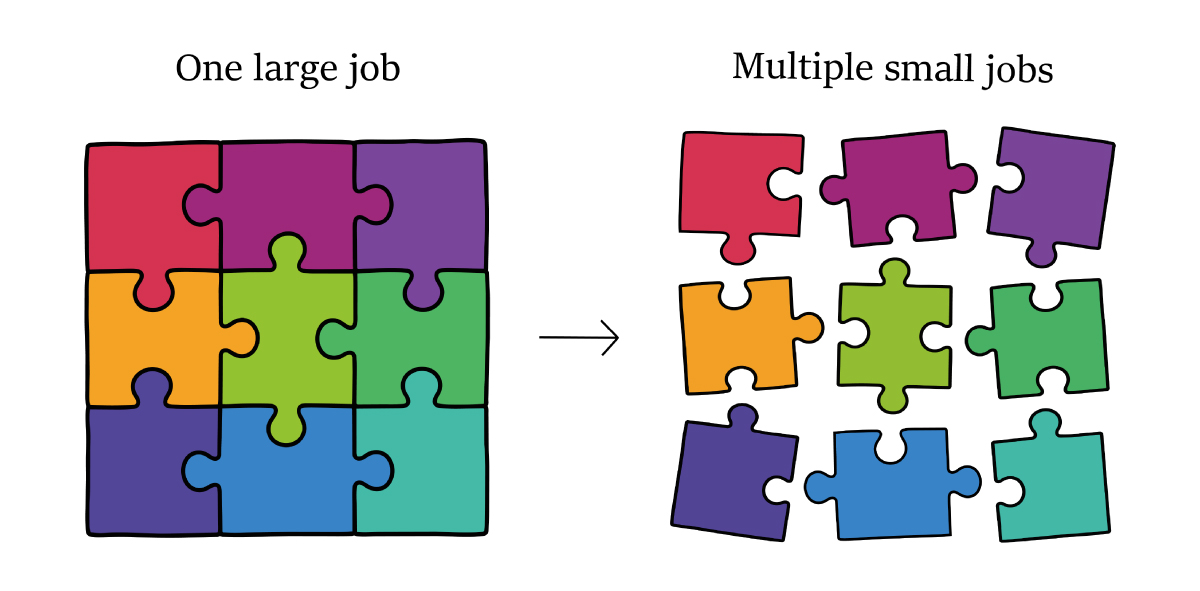
💡 Run smaller jobs when possible!
Rather than submitting one large job, consider splitting your workflow into multiple smaller, independent jobs whenever possible. This often leads to faster scheduling and more efficient use of HTC resources.
Unlike the High Performance System, CHTC staff do not limit the number of jobs a user can have running in parallel, thus it is to your advantage to strategize your workflow to take advantage of as many compute resources as possible.
More detailed information regarding CHTC’s HTC system can be found in the ⚙️ HTC Overview Guide.
Step Two: Set Up Your Account
Before you can submit jobs, you need access to a CHTC account. If you have not requested an account yet, start by filling out the 📋 CHTC account request form.
Once you receive your login information by email, you are ready to begin!
To use CHTC, you first log in to an access point. An access point, also called a submit server, is the computer you connect to before your jobs run. It is where you prepare your files, write your submit instructions, and send your jobs to HTCondor.
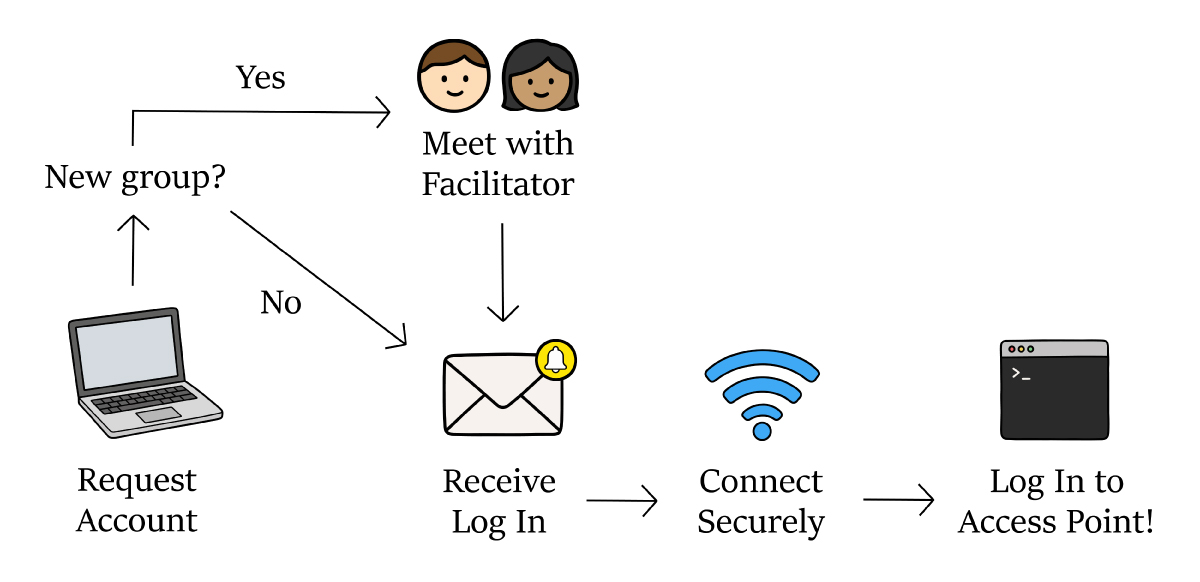
For security purposes, every CHTC user is required to be connected to either a University of Wisconsin internet network or campus VPN and to use two-factor authentication when logging in.
See how to 💻 Log In to CHTC Resources.
After you know how to log in, the next step is to learn how to submit jobs.
Step Three: Submit Your First Job
When you use CHTC for your own project, you are asking the computing system to run work for you. That work might be one script, one analysis, or many repeated tasks that use different input files.
Each task you submit to the system is called a job.
A job is the full set of instructions and files needed to run a piece of work. This can include the command or script, input files, software, and instructions for where to save output files, error messages, or log files.
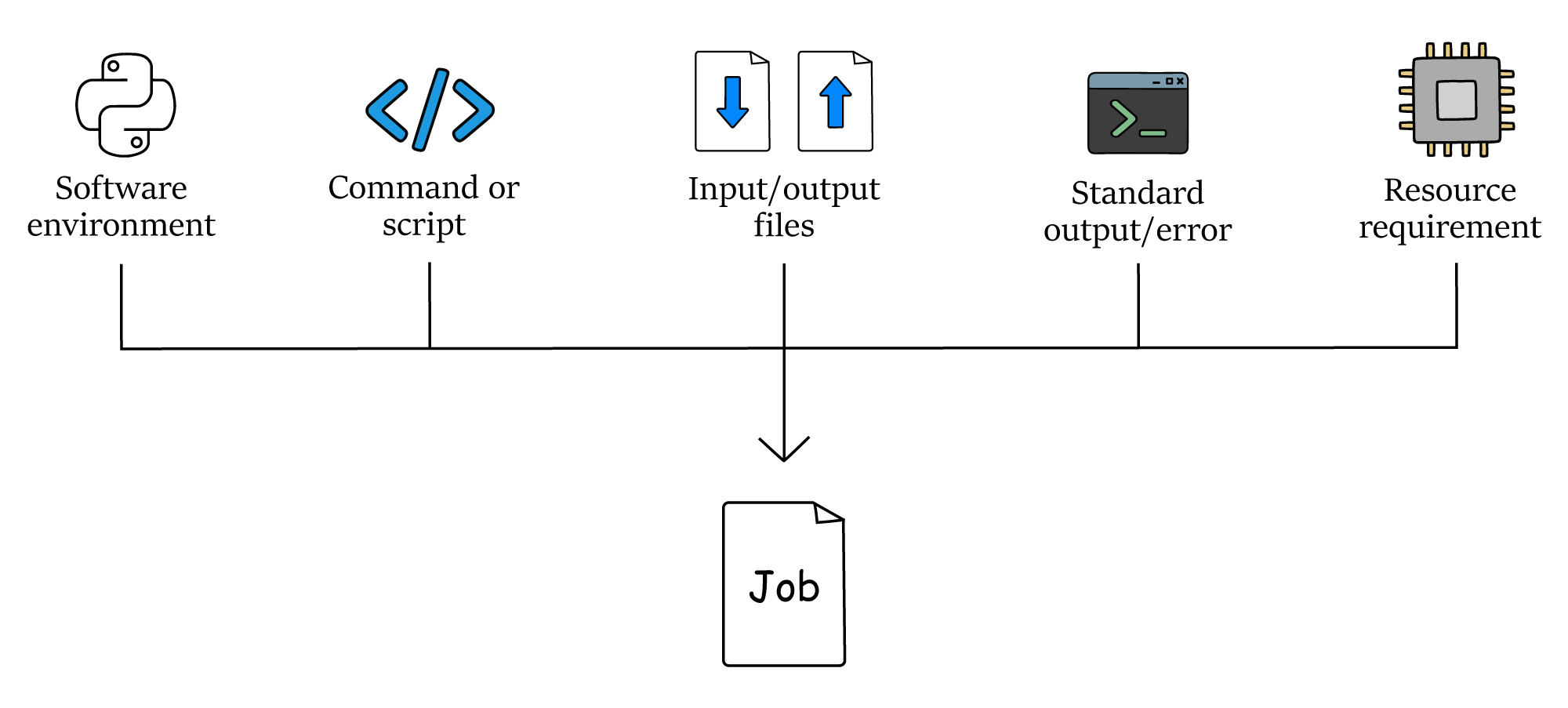
Jobs are submitted to HTCondor, the system that manages where and when jobs run. HTCondor is a job scheduler.
You will use HTCondor commands to submit jobs, check their status, review job information, and remove jobs if needed. These commands help you manage your work after it has been sent to the system.
Practicing with a simple HTCondor job first can help you feel more prepared before starting your own project.
It is highly recommended that every user follow this short tutorial.
Once you are comfortable with these basic steps, you can learn how to use HTCondor to run many jobs at once.
The following guide demonstrates different examples on how to run multiple jobs from one submit file, use different input files or settings for each job, and save output files in specific directories.
Step Four: Install Software
Our software guides contain information about how to install and use software on the HTC system.
For most users, we recommend using a container.
Software Containers
A software container packages your software with the operating system, tools, and settings it needs to run into a portable object. When your job runs, it launches inside of the container with the software environment that you’ve set up. This ensures that your jobs can run on almost any machine, no matter which operating system or libraries the machines have installed, because your container has the tools your jobs need.
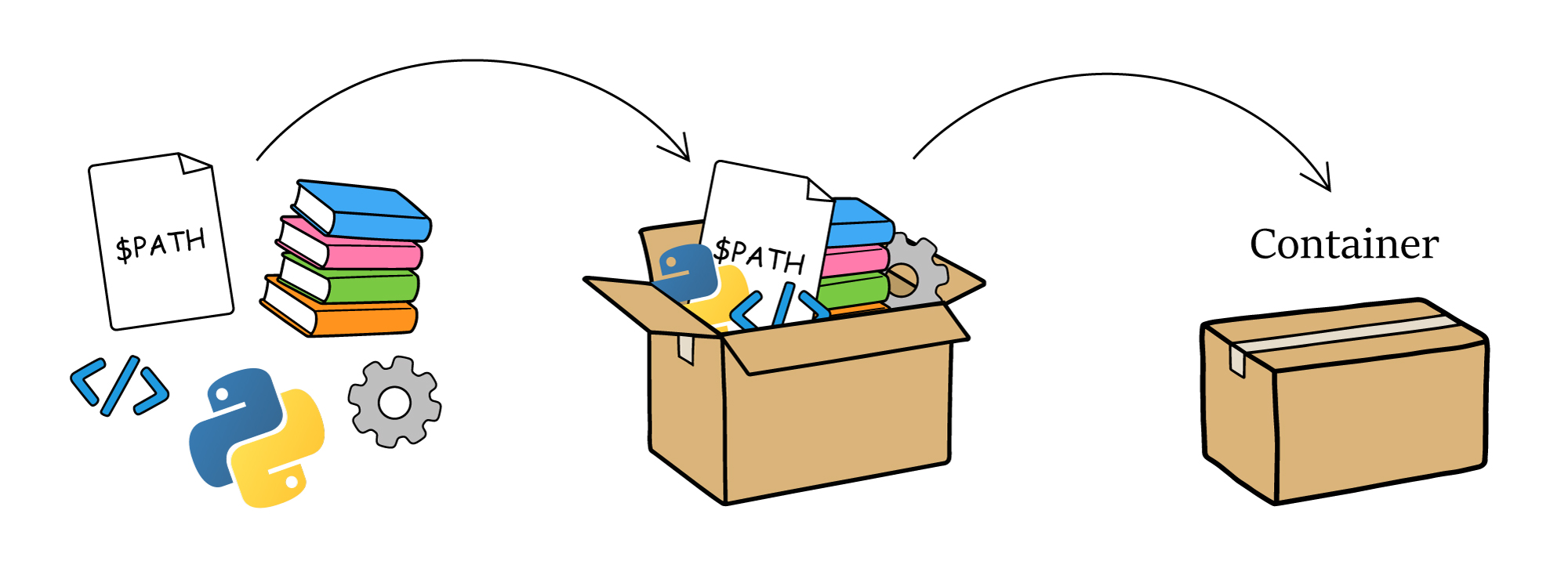
Containers keep everything together so it is easier to move and run!
Containers are great for researchers whose software stack:
- Uses Python, R, Julia, and MATLAB
- Uses conda
- Rely on several other tools or packages (dependencies)
- Have pre-existing containers (such as on Docker Hub
Using a container makes your work more portable and easier to run consistently. Learn more through the guide below that explains how to build, test, and use software containers.
Pre-installed Software in Modules
CHTC provides a limited set of pre-installed software in modules. You can load these modules and use them in your jobs.
Available modules include software used in several research areas, such as COMSOL, ANSYS, ABAQUS, GUROBI, and others.
To learn how to use these software in your jobs, see the 💡 Use Software Available in Modules guide and the 👾 Use Licensed Software guide.
Step Five: Access Your Data
Choose a Location to Stage your Data
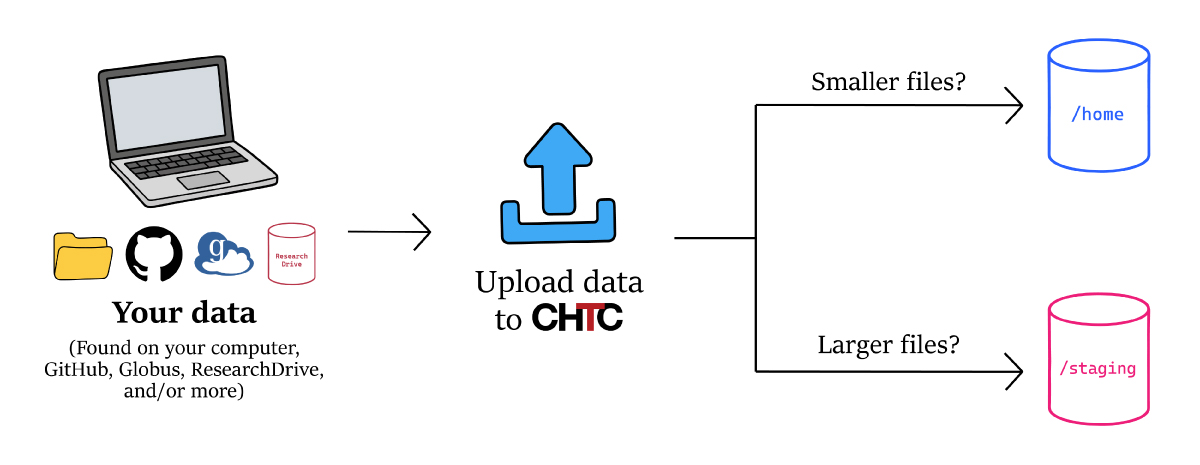
When using the HTC system, you will usually need to upload your data files so your jobs can access them while they run. Before transferring files, you should decide where to store your data on CHTC.
There are two primary storage locations: /home and /staging.
/home is more efficient at handling “small” files, while /staging is more efficient at handling “large” files. For more information on what is considered “small” and “large” data files and to learn how to use files stored in these locations for jobs, visit our 📁 HTC Data guide .
Transfer your Files to CHTC
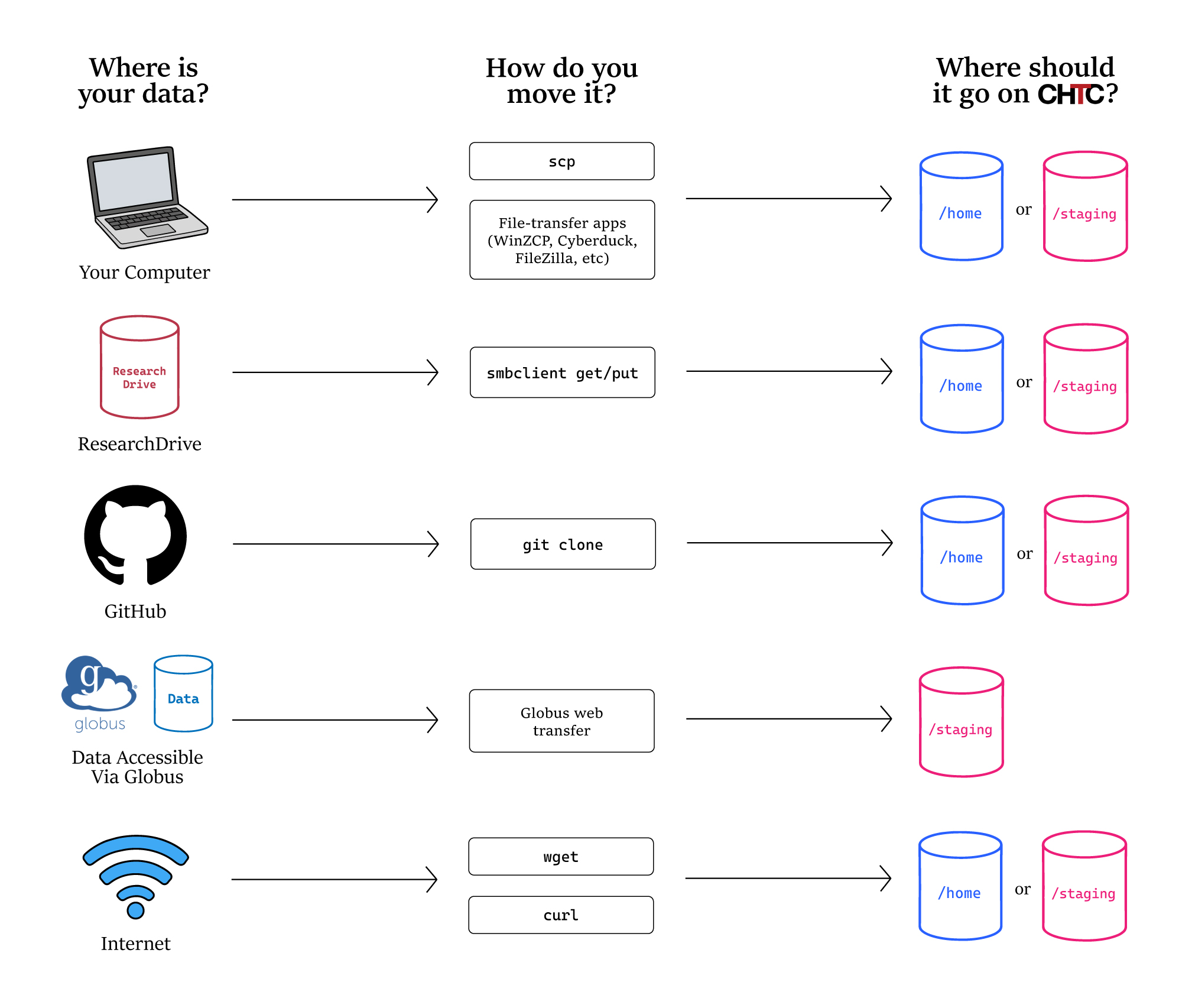
After choosing where your data should go, the next step is to transfer your files to CHTC.
The best way to move your data depends on where your files are stored and how your workflow is set up. The guides below explain how to transfer files from several common locations:
- Transfer Files between CHTC and your Computer
- Transferring Files Between CHTC and ResearchDrive
- Using Globus to Transfer Files to and from CHTC
- Remotely Access a Private GitHub Repository
Step Six: Run Test Jobs
Once your data, software, code, and HTCondor submit file are ready, we recommend you submit a few test jobs before running your full workflow.
Test jobs help check that your job is working correctly. They also help you understand how much CPU or GPU, memory, and disk space your job uses. This information can help you choose better resource requests later and troubleshoot problems before submitting many jobs.
Start with one test job first. After it finishes, check the files HTCondor creates to make sure the job ran correctly.
HTCondor creates several files that can help you review what happened when your test job ran:
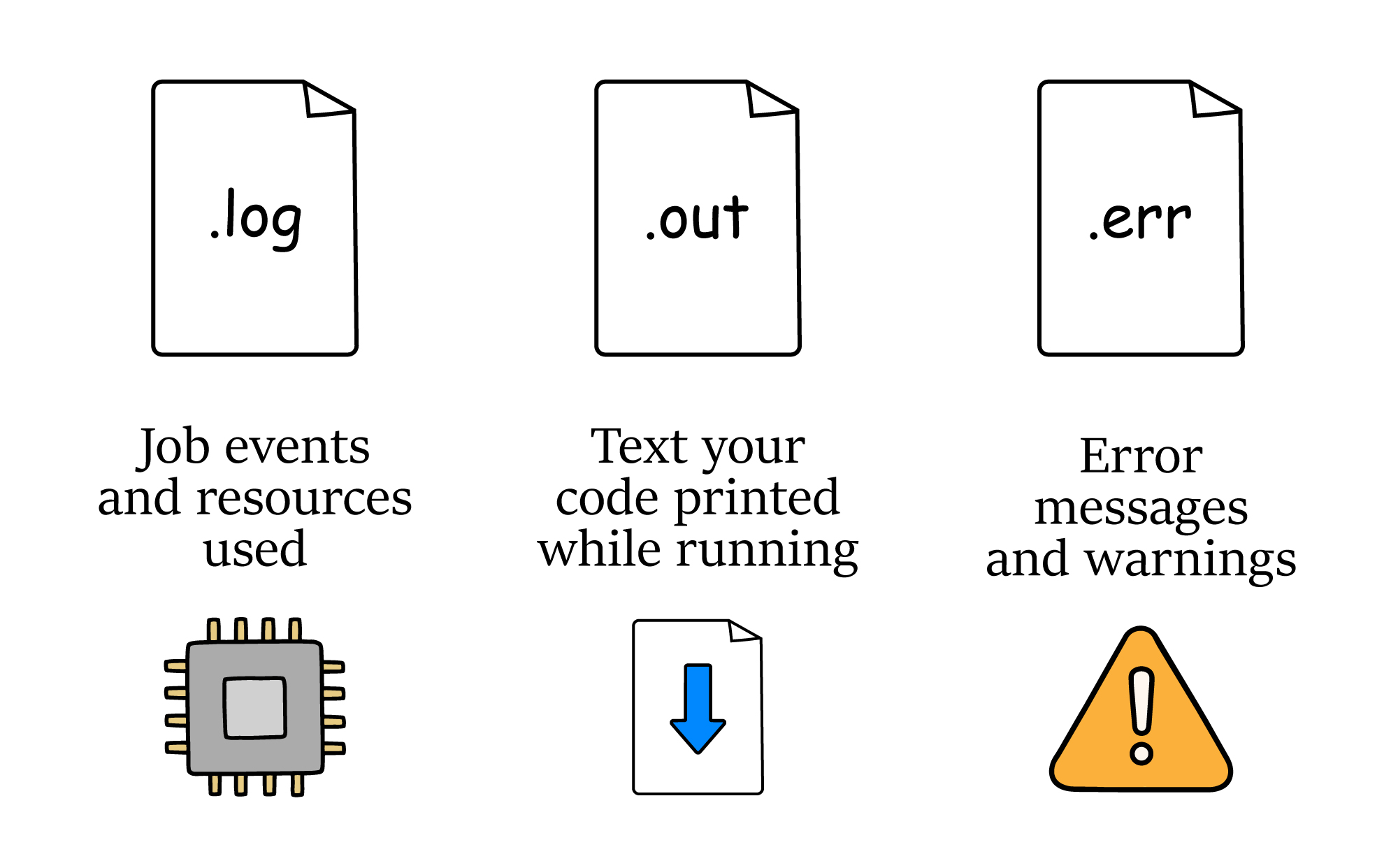
- The
.logfile shows information about how the job ran and resources used. - The
.outfile shows the text your code printed while it was running. - The
.errfile shows error messages from your software or code.
After your test jobs finish, we recommend you check for:
- Jobs that were placed on hold. You can view hold messages with
condor_q jobID -hold. - Expected output files - are they in the right location, and do they show the expected output?
- The size and number of output files. This helps you make sure that your quota is large enough for your output data when you submit more jobs.
If your first test job works as expected, scale up your test by running a small batch next, such as 5 to 10 jobs. This gives you a chance to test your workflow at a slightly larger scale and ensure your pipeline works before submitting everything.
When the small batch finishes, review the output files and check your available storage space, also called your quota. This will help you estimate whether you have enough space for the files your full workflow will create.
If the test jobs finish successfully and your quota is large enough, you are ready to submit your full workflow!
If your test jobs do not run successfully, do not submit your full workflow yet. First, check your .log, .out, and .err files to understand what happened. You should also check whether your jobs were placed on hold by using condor_q jobID -hold.
Fix any issues before submitting more jobs. This helps prevent the same problem from happening across your full workflow.
If you are not sure what went wrong or need help troubleshooting, contact the 💬 CHTC Facilitation team for assistance.
Step Seven: Access More Compute Capacity
After your test jobs run successfully, you may be ready to run more jobs or use GPUs. If your workflow needs more compute capacity than CHTC can provide locally, you may be able to access additional CPUs or GPUs outside of CHTC.
This may be a good option if your jobs:
- Run for less than about 10 hours
- Use less than about 20 GB of data per job
- Do not require CHTC modules
If your jobs meet these requirements, you may be able to have more jobs running at the same time.
To use this additional capacity, your jobs may run on hardware that CHTC does not own. Instead, your jobs will “backfill” on resources owned by research groups, UW-Madison departments and organizations, and a national scale compute system: the OSG’s Open Science Pool. This allows researchers to access capacity beyond what CHTC can provide.
To learn how to use these additional CPUs or GPUs, visit 📈 Scale Beyond Local HTC Capacity.
Step Eight: Move Your Data Off CHTC
📢 CHTC storage is not permanent!
You should expect that your data will eventually be removed from CHTC servers. Plan ahead by saving important files in another backed up location.
Data stored on CHTC systems is not backed up. CHTC staff work to keep the system stable, but unexpected outages can still happen. These outages could affect your files on CHTC.
Because of this, you should always keep copies of important scripts and input files somewhere else, such as:
- Your laptop
- A lab server
- ResearchDrive
- Another backed up storage system
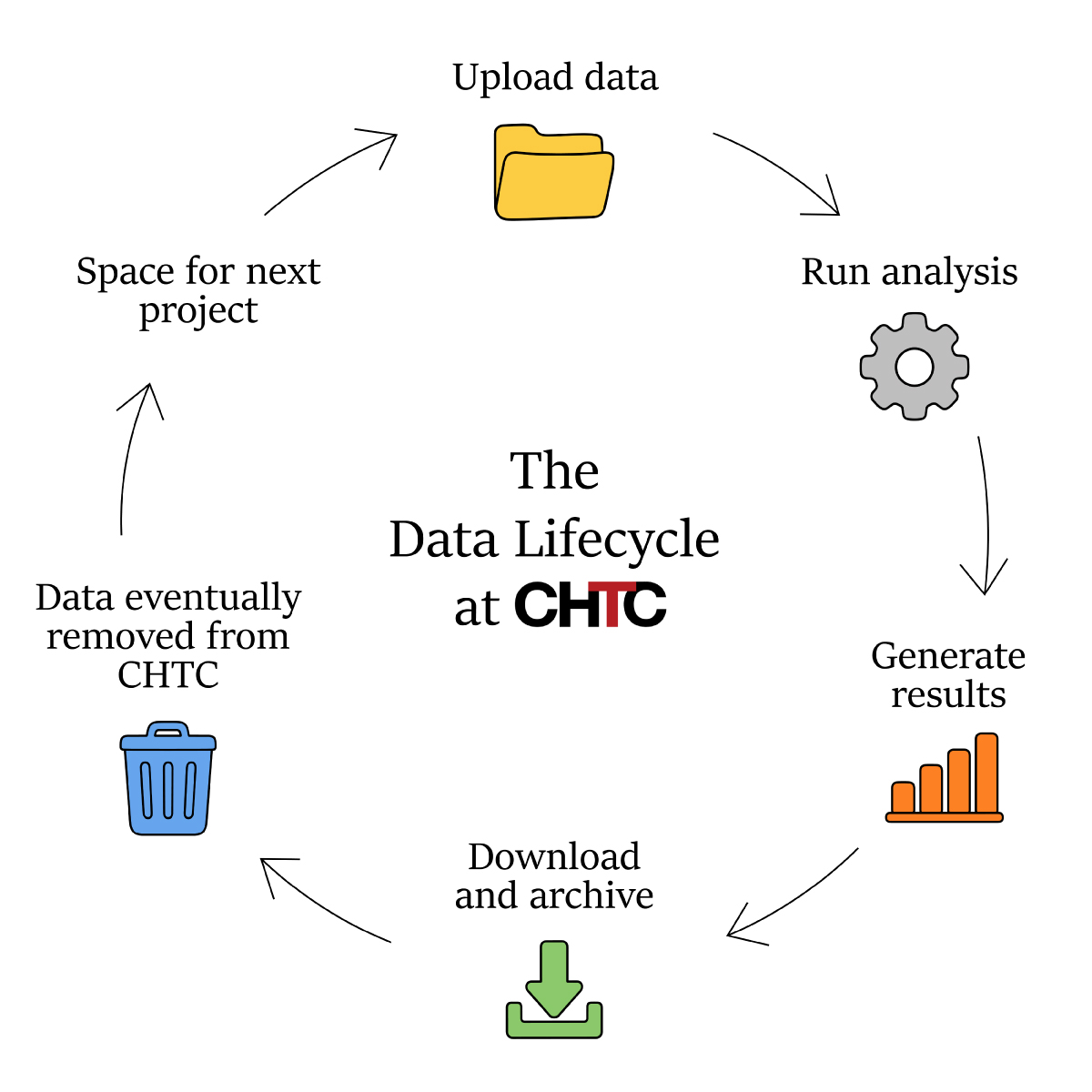
This lifecycle shows how data should move through CHTC.
CHTC staff may delete files from users who have not logged in or submitted jobs for several months. This helps make space for new users.