Machine learning/AI workflows on the HTC system
Introduction
This guide provides some of our recommendations for success in running machine learning and AI workflows on the HTC system.
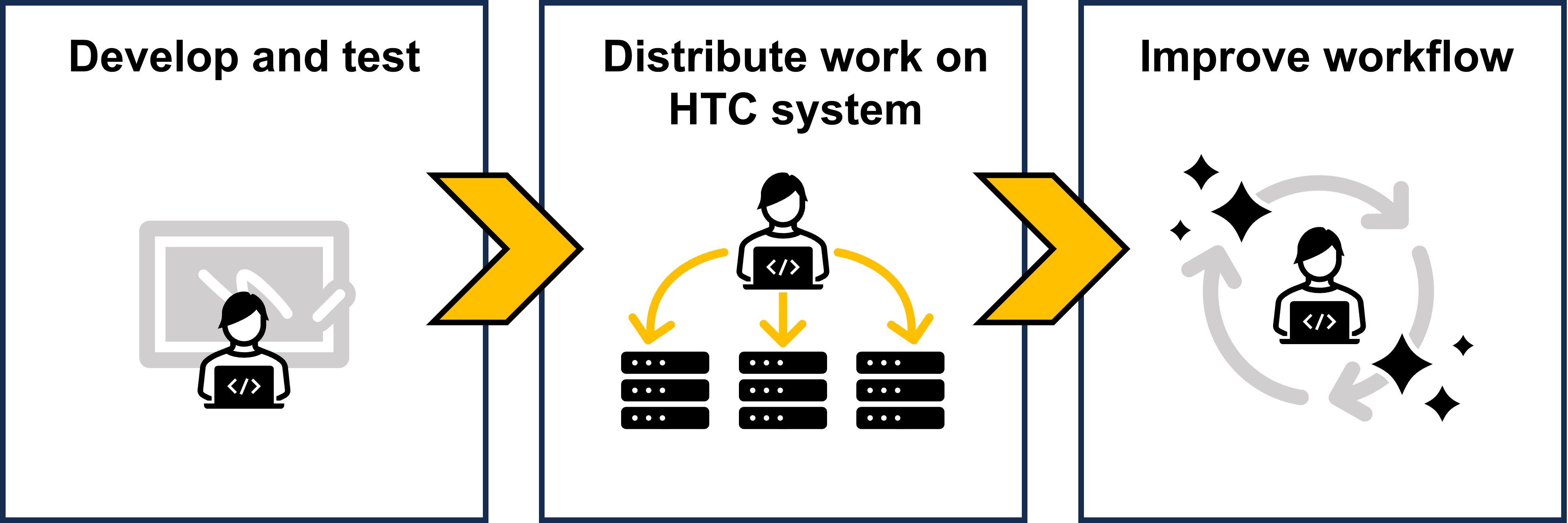
There are three stages to getting your ML/AI workflow running smoothly on the HTC system:
- Developing and testing your code
- Distributing your work on the HTC system
- Improving your workflow
This guide will provide general recommendations for each stage.
Table of Contents
Develop and test
In this stage, you are developing your code and scripts to be used on the HTC system. You should aim to create a minimally viable workflow that can run on a local machine while laying a foundation for distributed work that will accomplish your science.
Take hyperparameter tuning, for example. Your desired workflow might look something like this:
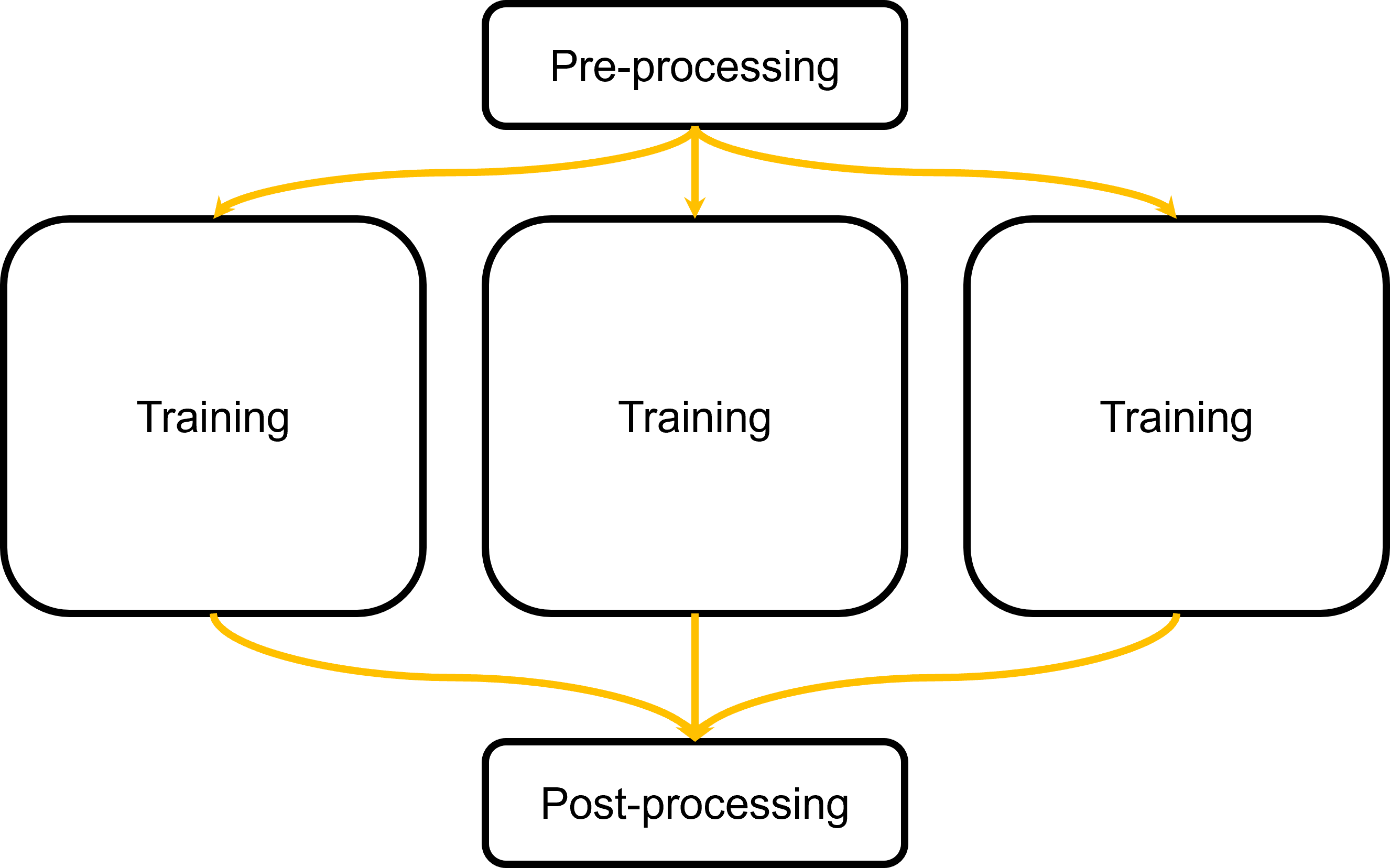
Instead of developing your scripts to run entire workflow as a single job, you should develop scripts for sections of your workflow. In our example of hyperparameter tuning, we’ll want to focus on developing scripts for the training step. Why?
If we develop a general training workflow, we can reuse the same scripts to submit multiple training tasks. This is an example of high throughput computing!
For other steps, like pre-processing and post-processing, we can submit them as separate jobs or scripts managed by DAGMan.
Create your software environment
Before we start anything, we need to consider our software environment. We recommend running all ML/AI workflows will run inside a container software environment.
Each software stack is different, so we encourage users to manage their own software environments and build their own containers.
Be aware that CHTC does not provide consultation services for code development.
Write down your software environment
Write down what you need to run your software environment, including but not limited to:
- Software (e.g., Python, R)
- Packages (e.g., matplotlib, Pytorch, pandas)
- Dependencies and libraries (e.g., specific versions of GLIBC, libxc)
- Environment variables
- CUDA library version (if applicable)
Next, you’ll need to build your software environment in a new container or use an existing container with your environment.
Docker containers
Docker is a commonly-used container engine, with many existing containers distributed on Docker Hub.
To see how you can use Docker containers to run jobs in CHTC, see our guides:
Some machine learning frameworks publish ready-to-go Docker images:
- Tensorflow on Docker Hub - the “Overview” on that page describes how to choose an image.
- Pytorch on Docker Hub - we recommend choosing an image that ends in
-runtime. - NVIDIA CUDA Docker images
If you can not find a Docker container with exactly the tools you need, you can build your own, starting with one of the containers above. For instructions on how to build and test your own Docker container, see this guide:
Apptainer containers
CHTC also supports Apptainer, another container engine. We recommend new users try Apptainer, since Apptainer is already installed on CHTC machines, and users don’t need to download it, unlike Docker.
- Use and build Apptainer containers
- Additional considerations on building Apptainer containers
- Software recipes
Conda environments
The Python package manager conda is a popular tool for installing and managing machine learning tools. You can build a conda environment in Docker or Apptainer containers.
Distribute your work
After getting your software stack set up, the next step is to figure out how to effectively utilize the available resources to run your workflow. This section outlines available resources and considerations for your workflow.
GPU versus CPU availability
CHTC has ~150 shared use GPUs that are in high demand. This means that your jobs may take minutes to hours to start, depending on resource requests. The more resources (and more specific GPUs) you request, the longer your job may take to start.
One alternative is to use CPUs. CHTC has over 1000 CPUs! When possible, use CPUs. In general, jobs that use only CPUs (<20 CPUs) start more quickly and allow you to have more of these types of jobs running simultaneously.
For certain calculations, GPUs may provide different advantages, since some machine learning algorithms are optimized to run significantly faster on GPUs. Consider whether you would benefit from running one or two long-running calculations on a GPU or if your work is better suited to running many jobs on CHTC’s available CPUs.
You may need to use different versions of your software, depending on whether or not you are using GPUs, as shown in the software section of this guide.
See our GPU guide for a summary of available GPUs.
Data size
Most machine learning/AI workflows require large datasets. If your job is using input data greater than 1 GB, you will need to stage the large datasets with our /staging file system or through ResearchDrive.
If you have a large dataset that has lots of small files (<1 GB each), you should transfer the dataset as one large file (i.e., .zip or .tar.gz). Do not transfer a directory from /staging recursively. This ensures efficient file transfer and decreases the load on the system.
Read our data transfer guides:
- Use and transfer data in jobs on the HTC system
- Managing Large Data in HTC Jobs
- Directly transfer files between ResearchDrive and your jobs
Job length/duration
For CPU-only jobs, CHTC’s default job length is 72 hours.
For GPU jobs, the default job length is medium, which runs for a maximum duration of 24 hours. Read our GPU job guide for more information about GPU job length.
| Job type | Maximum runtime | Per-user limitation |
|---|---|---|
| Short | 12 hrs | 2/3 of CHTC GPU Lab GPUs |
| Medium | 24 hrs | 1/3 of CHTC GPU Lab GPUs |
| Long | 7 days | up to 4 GPUs in use |
If you need longer runtimes, contact CHTC staff get-help and/or consider implementing checkpointing into your jobs.
Test your workflow
Before you submitting your workflow, you should always test with a single job first. This will allow you to catch any bugs and errors in a manageable way, as well as reducing the usage of computational resources on failed jobs.
While every workflow looks different, follow our guidelines for development and testing.
- Consider runtime, disk space, memory, and GPU needs. The more (or specific) resources you need, the less of these jobs you will be able to have running at a time. Consider developing your scripts to use fewer or more generalized resources.
- Test with a subset of your data. Instead of using a large dataset (especially those >100 GB), use a smaller dataset to reduce resource usage and time to test.
Get more throughput by submitting multiple jobs
Do you have the ability to break your work into many independent pieces? (e.g., hyperparameter tuning, inference) If so, you can take advantage of CHTC’s capability to run many independent jobs at once, especially when each job is using a CPU. See our guide for running multiple jobs.
Improve your workflow
Once you’ve gotten a subset of your workflow going, it’s time to refine and improve your workflow! This section highlights how to get more out of the available resources (“do more with less”), monitor and organize runs, and/or create ensembles of models.
- Use automated workflows to manage your tasks (e.g. using DAGMan)
- Monitor your training with Weights and Biases—however, be aware of API key leakage.
- Use checkpointing to shorten your jobs and increase the number of jobs you can have running concurrently. This also makes your job resilient against job eviction and machine issues.
Gotchas and tips
- Check your job logs, especially during testing, to understand your usage (memory, CPU, disk, GPU memory). Use these values to optimize your resource requests.
- If your job is using the conda environment but not utilizing the GPU, check that you are specifying the gpu-specific version of
pytorch/tensorflow. - Unsure about something? Ask for help or give us feedback!
CUDA capability
The CUDA capability is a number that corresponds to the computational capability of NVIDIA devices and loosely correlates with GPU generation. There are considerations between versions of CUDA and capability. See Wikipedia for a matrix of compatibility.